
The whole vibe about Cursor for me was that I loved the IDE. That is what drew me to it. I still prefer Cursor for everyday work for that reason and for the workflow I’ve built around it. Today I started with just one Cursor window instead of four, five or six IDE windows, and actually it’s not too bad, you know.
It’s early days. The Agents Window has existed for a bit now, but I still wouldn’t use it. I’d go to my IDE out of habit.
Recently, every time I used Cursor, a prompt popped up saying this version of Cursor would stop working in December 2026 and to update it now. Naturally, after about a week of ignoring it, I updated it this morning because it was the first time I had everything closed anyway.
It opened in the Agents Window and I just thought, okay, I’ll try it.
The usual morning
Usually I would open my Basecamp project in the IDE, but only to use the agent chat anyway. I would open the WordPress theme project in another IDE because I might look at the code as it works. Then I would open a new project for a new BigCommerce application I was going to build.
Normally I would use the Basecamp agent to pull my specifications document from Basecamp, then go into the new project and start setting up the Cursor rules, project context and so on.
For the WordPress project, I wanted to quickly zip a few specific files for someone outside the organisation so they had the context they needed. A client had hardcoded functionality into the theme files. We were going to make a plugin instead, covering the existing wizard steps and allowing them to create other questionnaires in future without saving that functionality in the theme.
I would normally do all this with three different Cursor IDE windows open.
Each IDE had a way to open the Agents Window, but it seemed to bring me back to the same window rather than opening several. It felt like Cursor was telling me: you only need one window.
One window today
Today I opened a new workspace for the new application and the existing WordPress theme workspace in the same Agents Window. I also had my Basecamp agent chat there.
It’s worth mentioning that this morning I finished making sure my Basecamp agent was properly set up as a Cursor skill too. I used it inside the new workspace to accomplish the same thing I would normally do in its dedicated IDE workspace. So technically I didn’t need to open that separate workspace for this purpose anymore. That’s my custom setup, not something Cursor hands you ready-made for Basecamp.
Instead of multiple IDEs, I now have one Agents Window and a massive list of all my repositories and the chats to go with them, right here in one window.
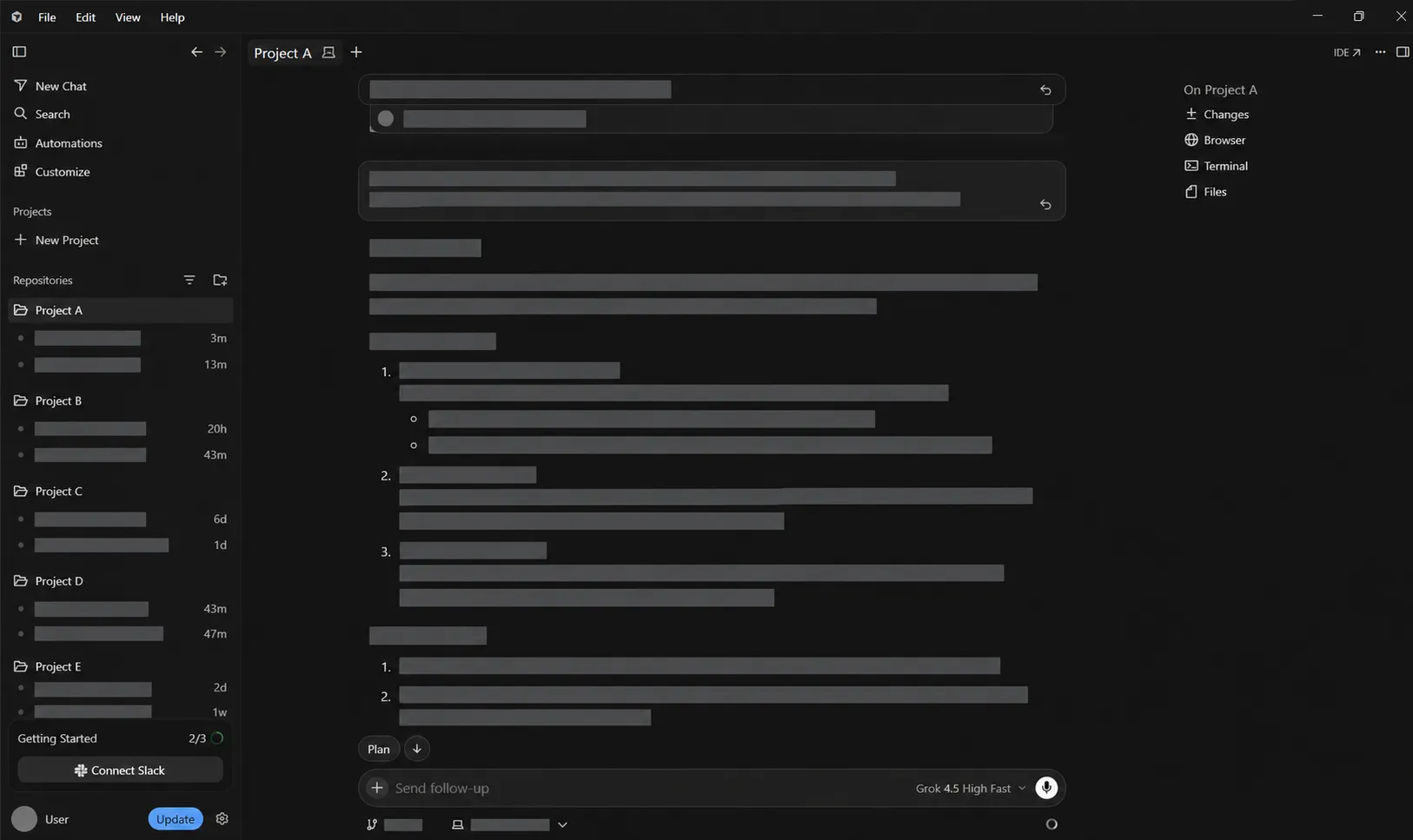
So far, so good. I haven’t felt the need to go to the IDE yet. Maybe I will for a code-review session. We’ll see.
The interface is pretty different but also pretty easy to use. It’s clear which project I’m talking to, so I haven’t messed anything up yet, but I’m sure I will!
Funnily enough, I wondered whether, if I requested an update in the wrong workspace, Cursor might have enough permissions to perform it in the correct workspace anyway. Depends on your permissions.
For now, the main benefit is having everything together. I can sort the chats by most recent, so obviously what I’m working on is at the top.
Instead of trying to open the correct Cursor, I have one Cursor to rule them all 🫡
I’m sure my RAM thanks me too.